How to Save Offline Maps for a Remote Weekend Trip
Somewhere between the last gas station and the trailhead, the bars disappear. That's a fine thing for a weekend, right up until you want to know whether the fork ahead leads to the lake or to somebody's private driveway. Offline maps solve that problem, but only if you solve it first — at home, with a decent connection and twenty minutes to spare.
Downloading a map is easy. Downloading the right map, testing it, and having a second copy for when the first one fails is where most people come unstuck. What follows is the routine worth running before you leave reliable signal behind.
Every offline map starts as a rectangle you draw on a screen. Most people draw it badly. The instinct is to cover the whole county "just in case," which produces a download so large the app either refuses it or eats a gigabyte and a half of storage you needed for photos.
Draw the box around the trip instead. That means the trailhead and the trails that leave it, the road you'll drive in from the last town with fuel, and any settlement where you might bail out if the weather turns. Give the edges a few miles of slack, because plans shift and a wrong turn at dusk is exactly when you want the map to keep going.
Then think about detail. High zoom levels for a large area are what make downloads enormous. If you'll be walking, download the walking area at close detail and the drive at road-level detail. Two smaller downloads usually beat one impossible one.
The menus differ between apps, but the logic is the same everywhere. In Google Maps it's your profile picture, then Offline maps, then Select your own map. In Apple Maps, search for the area and look for the download option. Open-source apps such as Organic Maps and OsmAnd download named regions. Gaia GPS, CalTopo and similar tools let you pick a layer and an area. Wherever you are, the sequence is this:
One more thing worth knowing: some offline areas expire and need refreshing after a period of time, and the app will usually warn you. Check the dates on your saved areas the week before a trip, not at the trailhead.
Different layers answer different questions, and a single download often answers only one of them.
For the drive in, junctions, town names and the location of the last place to buy ice. Lightweight and easy to keep on the phone.
Contours, streams, and the trails themselves. OpenStreetMap-based apps are strong here, though trail data is contributed by volunteers and varies in quality by region. Thin dashed lines are a hint, not a promise — if a route matters, cross-check it against a paper map or a local trail association before you commit.
Heavy, and worth it in small patches. A high-zoom satellite tile of a confusing junction, a campsite clearing, or a spur road can settle in ten seconds what a topographic map leaves ambiguous. Download those patches individually; don't try to keep a whole valley in imagery.
This is the step people skip, and it's the one that separates a saved map from a saved trip. Put the phone in airplane mode at your kitchen table and try to use the map. Pan around. Zoom to the closest level. Search for the trailhead by name. Ask for a route between two points inside the downloaded area. If labels vanish, tiles turn grey, or the app wants a connection to calculate anything, you've found the problem at the right time.
Repeat the test at the last town with fuel, because that's your final chance to fix it. When you're out there, your phone's GPS receiver still works without a cell signal — the position dot will appear regardless. The question is whether there's a map underneath it.
Know, too, which features quietly depend on data: live traffic, weather overlays, some routing engines and most real-time trail reports. Plan as though none of them will exist.
Anything that lives on one phone can fail — cracked screen, dead battery, dropped in a creek. Redundancy is cheap:
Maps get you there; a few other saved items keep the trip running. Write down the trailhead coordinates rather than relying on a name search. Save the confirmation for your campsite or permit, the park regulations and any fire restrictions, the sunset time, and the number for whoever you'd call in an emergency — a regional number, not the one you'd dial at home. If the trip involves genuine risk, leave an itinerary with someone and agree on when you'll check in. A phone is a convenience in the backcountry, not a safety system.
Open each app and confirm the saved areas are present, current and named. Run the airplane-mode test once more, quickly. Charge every device and pack the power bank and the cable you actually need, not the one that fits your laptop. Slide the paper map into the top of your pack where you can reach it without unpacking. Then put the phone down and enjoy the fact that, for the next two days, you already know where you're going.
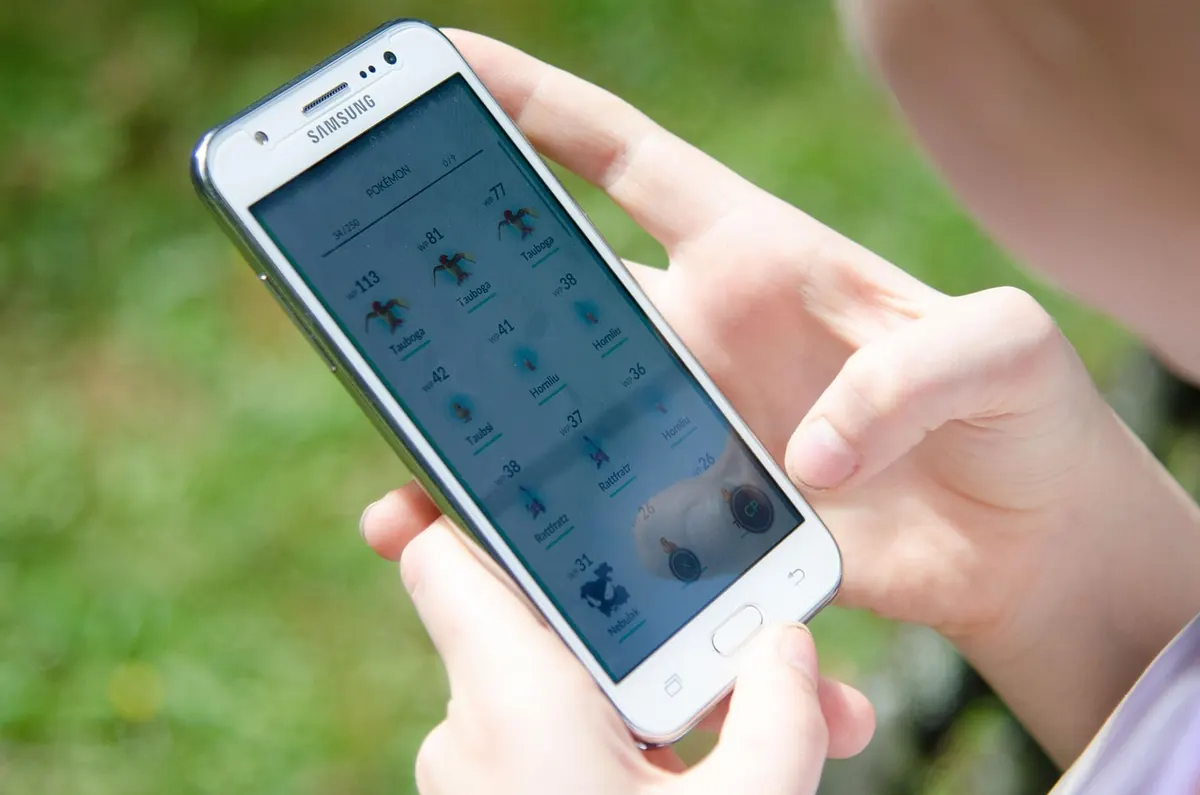
Photo: snitchde / Pixabay
Previous Post
Common Navigation Mistakes Tourists Make in Historic City Centers
Next Post
Seasonal City Mapping: What Changes in Summer vs Winter Travel Routes